SetPoint Button Applications
The SetPoint Button is most useful in scenarios where changing a CygNet point’s real-time value initiates a process or action that can be monitored via changes to the same or different CygNet point’s value. The following examples demonstrate applications of the SetPoint Button.
Sending a Value to a PLC via the OPCIS
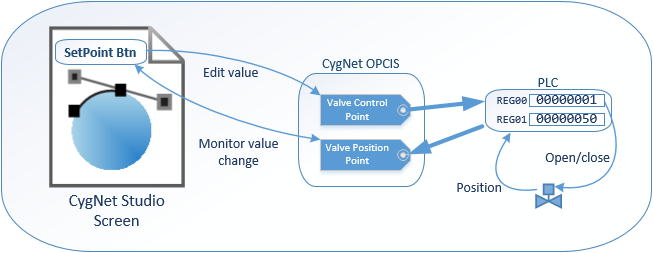
A typical scenario for use of the SetPoint Button is the sending of a value, via the OPCIS, to a processing plant’s PLC that causes an action, such as closing a valve, with the progress of the valve’s travel being reported in a separate PLC register and consequently written to a distinct CygNet point value.
The following diagram illustrates this scenario.
|
SetPoint Button CygNet/OPCIS/PLC Example |
Trigger a Group Rollup HyperPoint Script and Monitor Its Progress
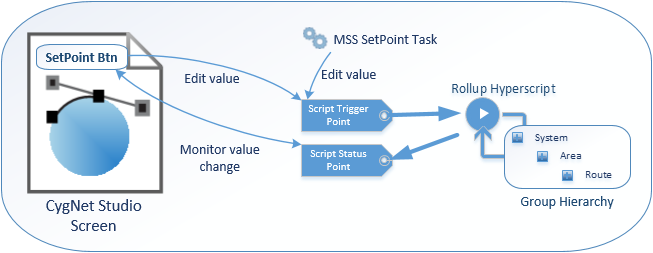
Another example of the SetPoint Button’s use is the triggering of the Group Rollup HyperPoint script to run in a HyperPoint Scripting Service (HSS) and the monitoring of that HyperPoint script’s execution progress via its status point (see Group Rollups for more information).
The following diagram illustrates this scenario.
|
SetPoint Button Group Rollup HyperPoint Script Trigger Example |
The following image shows a sample CygNet Studio screen configured to trigger and monitor a Group Rollup HyperPoint script execution.
|
HyperPoint Script Trigger and Monitor Screen Example |
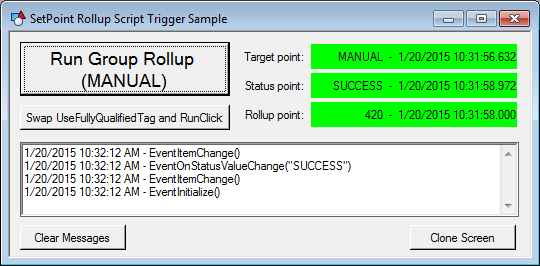
As with the UIS Command Button, the SetPoint Button can be configured to disable for all users who happen to have the same screen open while the SetPoint operation is in progress. In the above HyperPoint Script Trigger Example, the SetPoint Buttons will also disable when the HyperPoint script is triggered to run via the MSS. The Clone Screen button is provided to easily open a duplicate copy of this example SetPoint screen so that this interaction between identical SetPoint Buttons can be conveniently demonstrated.
The read-only Edit Box in the center of the screen displays the script events provided by the SetPoint Button and their execution order. These events are described in more detail in SetPoint Button Tool Events.
For this example screen, clicking the Run Group Rollup (MANUAL) SetPoint Button prompts the user with the following confirmation dialog box:
|
Trigger Group Rollup Confirmation Dialog Box |
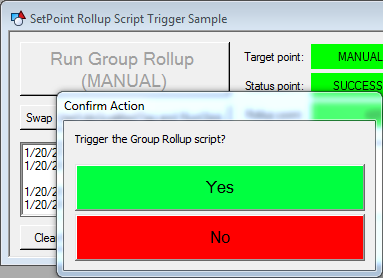
The options for prompting the user that are available for the SetPoint Button are nearly identical to those provided by the UIS Command Button. As a result, screens can be configured so that the users will have the same user experience regardless of whether they click on a UIS Command Button or a SetPoint Button.
When the user confirms the trigger action by clicking Yes, the SetPoint Button then updates the timestamp of the HyperPoint script "trigger" point, which is sufficient to initiate a Group Rollup calculation. The Run Group Rollup (MANUAL) SetPoint Button is configured to remain disabled, limited by a timeout, while the HyperPoint script is executing.
|
SetPoint Button is disabled while HyperPoint Script is executing |
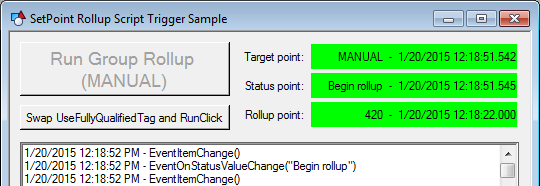
The SetPoint Button determines that the Group Rollup operation is complete by monitoring the value changes to the status point associated with the Group Rollup HyperPoint script. The set of well-known values for this status point are added to the SetPoint Button’s configuration allowing it to properly identify when the operation is complete. The following image shows a listing of some of those completion values. See SetPoint Button Tool Configuring a Status Point for configuration details.
|
List of completion values for the status point associated with Group Rollup |
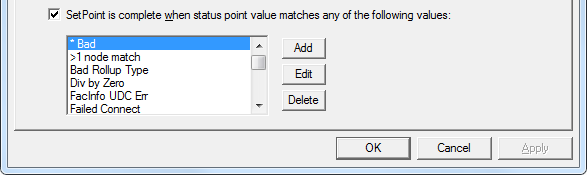
Note the asterisk character included in the highlighted entry * Bad. This entry is using a wildcard to match any entry that ends with the characters " Bad." This is used to match the status value generated when an incorrect Group Node ID is set in the Group Rollup configuration (see Group Rollups Error Messages).


